

Read the session list
The session list shows every session on every host, and what each agent is doing right now, so you can tell which one needs you without opening any of them.
Drag the sidebar’s right edge to give the list more or less room. Double-click the edge to reset its width. Farhelm remembers the width.
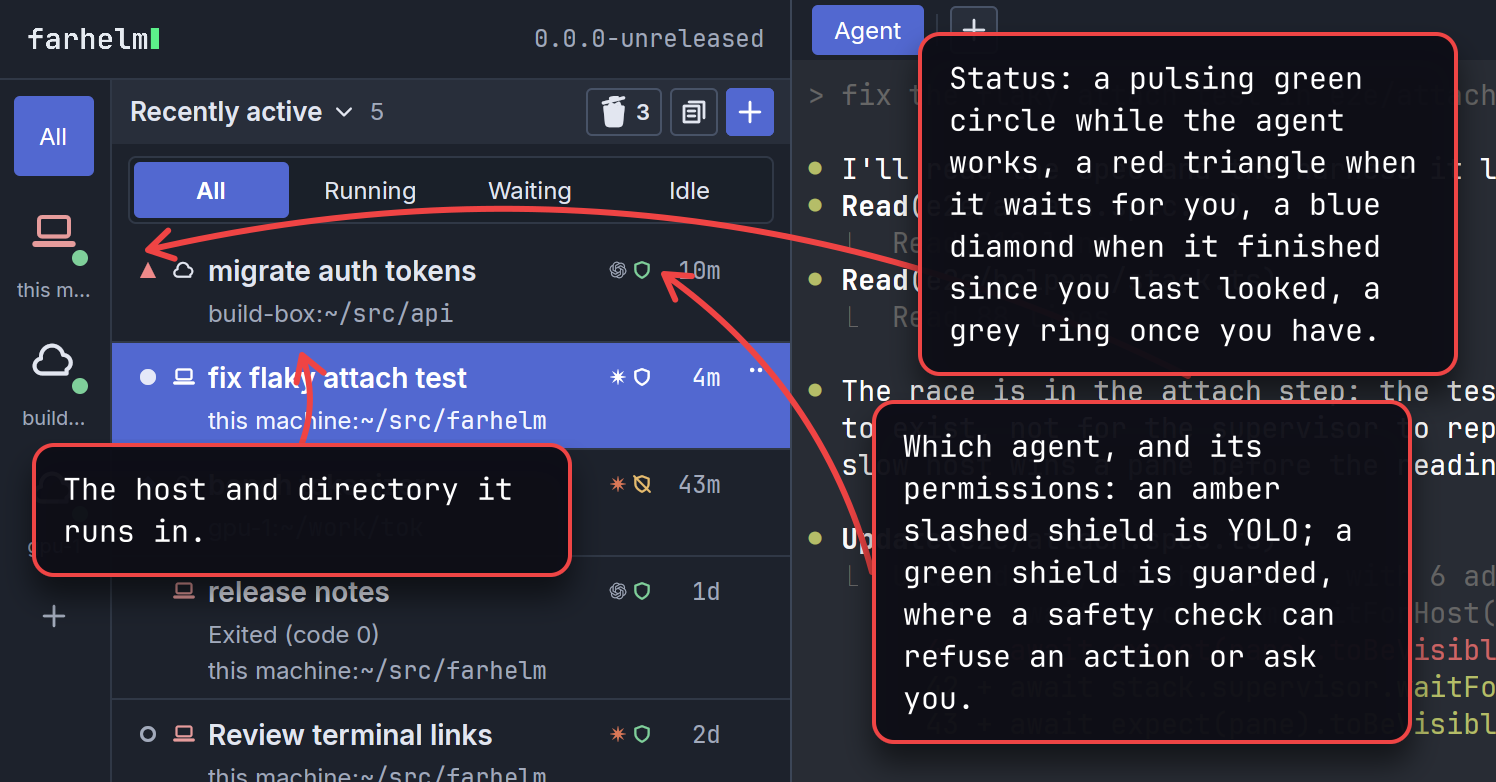
The age at the right of a row says how long ago the session last did something: now, <1m, 5m, 1d. Click a row
to open its terminal beside the list. Hovering over the dot or the marks beside the title says what each one means.
Permission modes explains the shields, including when one turns to YOLO because
Farhelm saw the agent switch modes.
Hover over the session’s name or the open area of its row to see its full title, host, directory, start time and last
activity in one summary; the marks keep their own explanations.
For a session that uses a managed checkout, a clone Farhelm made for a session, the summary also names its repository and checkout. Once the session is open, a branch mark in the bar under its terminal says the same; hover it to see the full directory and what happens when you delete the last session using it.
Ntfy alerts
Section titled “Ntfy alerts”To hear when a session needs you away from Farhelm, subscribe to a private topic in the ntfy app, then configure ntfy alerts under Notifications in Farhelm’s settings. The server defaults to ntfy.sh; use the same server and topic you subscribed to. For a server that requires authentication, add an access token; changing the server later clears the saved token when you save, unless you enter a new one. Priority controls how urgently ntfy announces the alert. Save keeps these choices in your helm, the program that shows you all your hosts’ sessions. Send test uses the saved choices, including while alerts are switched off, and says whether it succeeded. When ready to receive automatic alerts, turn on Send ntfy alerts and select Save.
Choose a hard-to-guess topic and keep it private: anyone who knows an ntfy.sh topic can read its alerts. An alert contains the session’s title and host, so avoid sensitive text in titles if you do not want it sent to that server. Farhelm waits briefly to avoid alerting on a passing waiting reading and sends once while a session keeps waiting. Approval cards and finished turns do not send ntfy alerts.
Keep Farhelm’s window open to receive alerts; it can be in the background. See The pieces for which part keeps running.
Managed checkout trash
Section titled “Managed checkout trash”The trash can beside the list’s title, left of the templates and new session buttons, holds managed checkouts whose last session was deleted.
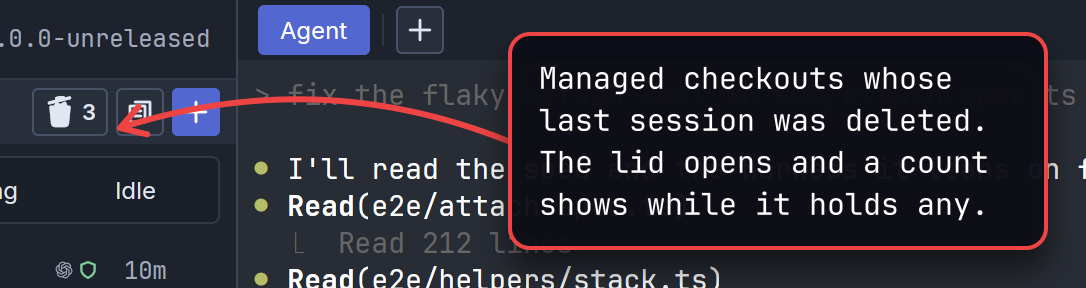
Open it to see the checkouts grouped by host, newest first, with their repository, archive time and disk usage.
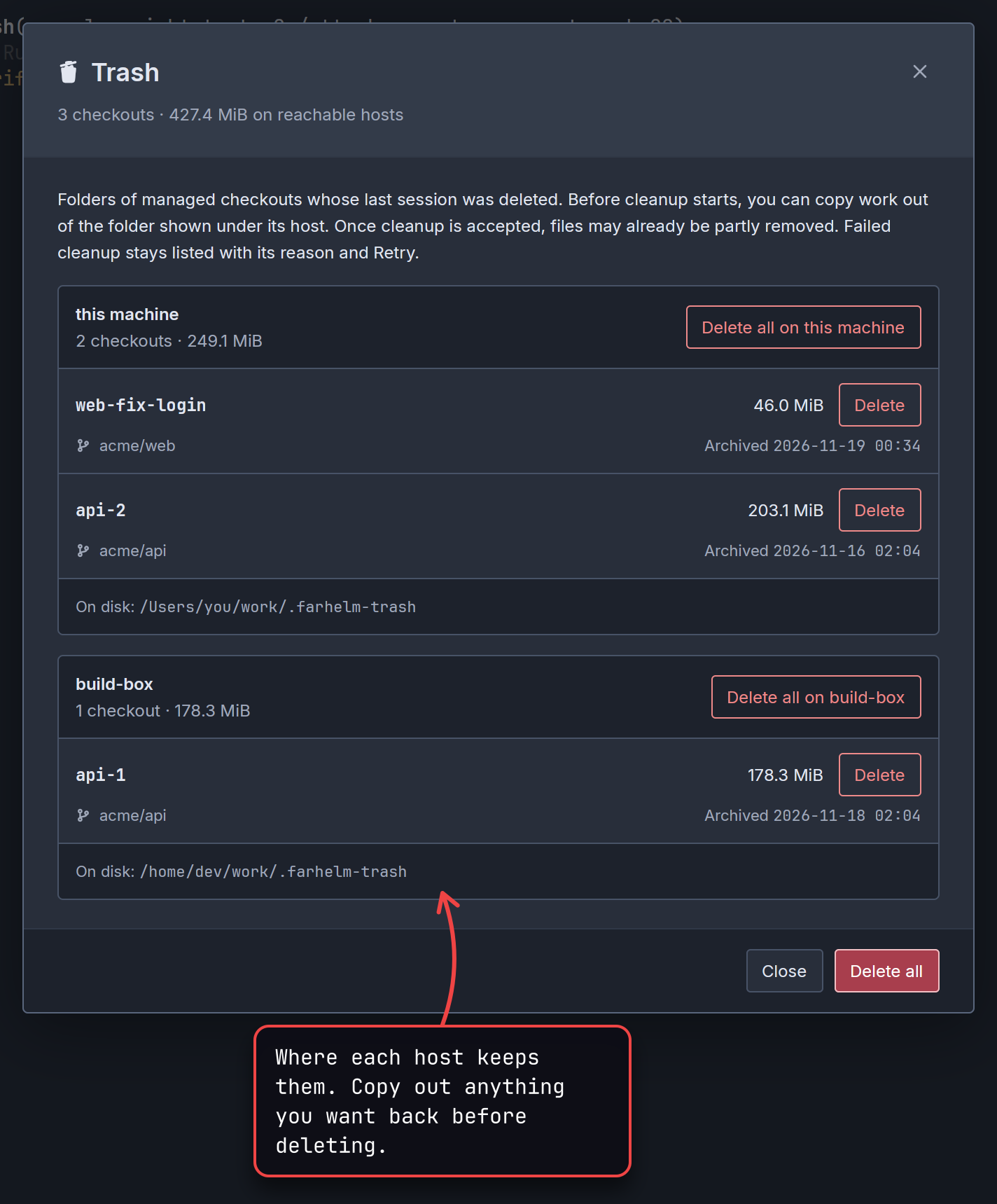
Delete all in the footer deletes the trash on every reachable host, and Delete all on a host only on that one. Each asks you to confirm, and work in the trash that was never committed or pushed is lost. Each checkout also has its own Delete button, which deletes just that checkout at once, without asking; any work in it that was never committed or pushed is lost. An unreachable host stays greyed out and is skipped by Delete all, which waits until every reachable host can be read. Sizes can be partial when some directories cannot be measured. If an archive directory was replaced or moved since Farhelm archived it, it stays untouched and the dialog explains what was left behind. Changing the files inside it does not protect it: copy anything you want to keep out of the archive first.
The host frees disk space in the background. The checkout stays listed as Removing… until its files are gone. If cleanup fails, it stays in Trash with the reason and a Retry button. Its directory may already be partly removed; Farhelm never changes its permissions to force deletion. The host also tries again when its supervisor, the program that keeps its sessions running, next starts (The pieces).
Confirming Delete all closes the dialog immediately. The trash can turns upside down and bobs while cleanup is running; hover it to see which hosts are freeing space. An individual Delete keeps the dialog open. Errors remain available in the trash, and the trash button tells you to open it for details.
Nothing empties ordinary archived checkouts automatically. A failed cleanup also appears in the navigation rail’s bell.
Notices about a host
Section titled “Notices about a host”The bell above Hosts in the navigation rail, the column of icons down the left edge of the sidebar (labelled Notifications when the rail is expanded), turns red and shows a count when there is something you have not read. Open it to see which host and checkout could not be cleaned up, its last measured size when known, and why. Retry now makes one more cleanup attempt; Open Trash takes you to the full list of archived checkouts.
Closing the panel marks the items you saw as read and quiets the bell. A problem stays listed until its files are gone, then turns grey and says Resolved; Clear resolved removes that history. Repeated cleanup failures update the same notice without making it unread again. Your helm, the program that shows all your hosts’ sessions, keeps that history and which items you have read across restarts. An unreachable host keeps its last known notices. Session warnings still use the bell on their row.
What the statuses mean
Section titled “What the statuses mean”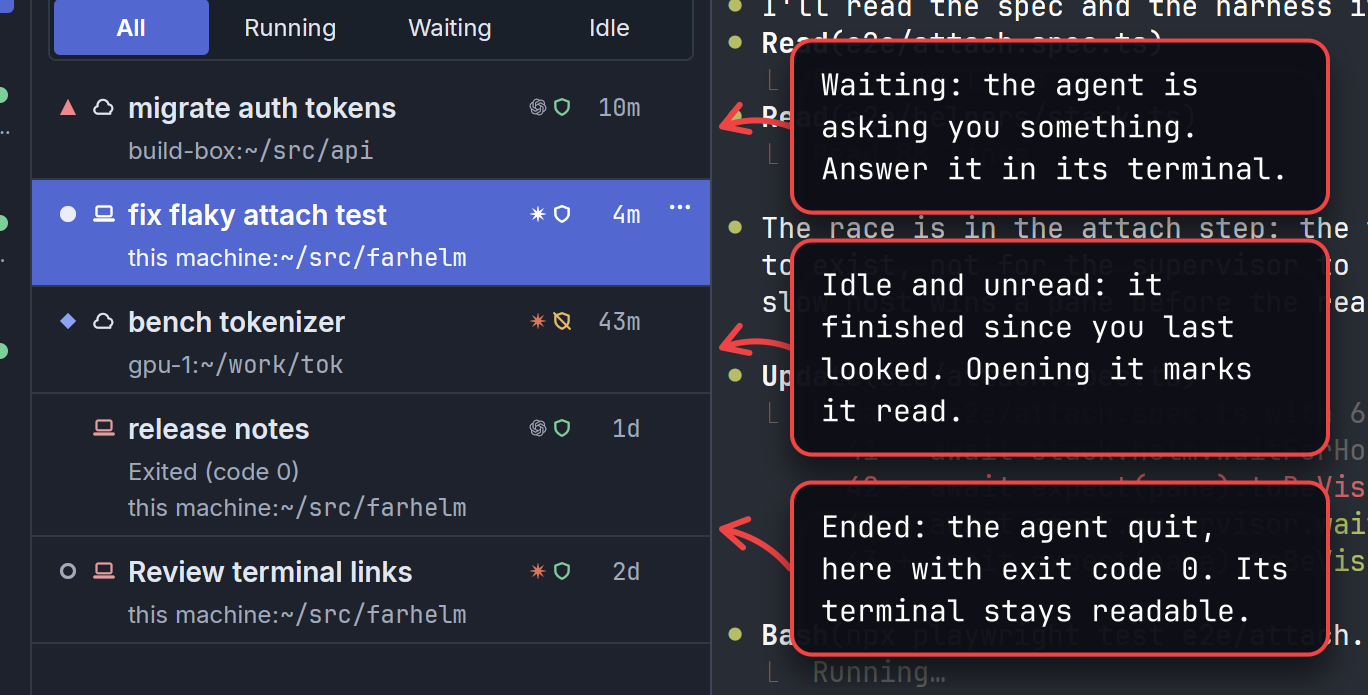
On a host Farhelm cannot reach, a session’s status mark turns grey and still, since it only shows the last status Farhelm knew.
Waiting is the status worth watching for: the agent has stopped to ask you something, such as approving a command, and does nothing until you answer. Not every agent can tell Farhelm when it is waiting; Supported agents says which ones can.
An agent can also be waiting on Farhelm itself, when it asks to start, stop, change, or delete a session, or to add,
change, or remove a host, with the farhelm command. That request shows as a compact card near the top of the window, not in the session list, and you answer it on
the card; Approve what agents do covers it.
A session that has ended says how in words under its name, instead of a coloured dot (with Compact ticked, as an icon you can hover over):
- Exited, with the agent’s exit code. “stopped by user” is added when you stopped it, or “stopped before the agent finished starting” if you stopped it while it was still starting.
- Interrupted: a reboot of the host, or a Farhelm update that ended an old terminal, ended the agent. The session waits for you to start it again.
- Error: the agent could not start; the reason follows the word. An agent that starts and then quits shows exited.
An exited session’s terminal stays readable for as long as its host stays up. A reboot clears it, so an interrupted session has no terminal until you start it again. Stop, restart, and resume covers starting either kind again.
Terminal links
Section titled “Terminal links”Open Settings from the gear at the foot of the navigation rail and choose Terminal. By default, Farhelm opens a web link and keeps the click from reaching the program, so agents such as Codex do not open it a second time.
Choose Open in Farhelm and also pass the click on if your program needs link clicks; it may open a second browser tab. Choose Pass the click on only to leave links entirely to the program. If that program does not handle mouse clicks, clicking opens nothing. This choice does not change file downloads. Your helm keeps this choice, and it takes effect at once.
This section also has File types to open with Cmd-click (Ctrl-click on Linux). The field
defaults to md, txt, json, png, jpg, jpeg, gif, webp, bmp, avif; save a comma-separated list to change which
downloaded files open in their default app. Save an empty field to download without opening. A warning appears beside
each type Farhelm does not recognize as safe.
Sounds when an agent needs you
Section titled “Sounds when an agent needs you”Farhelm plays a bell when a session starts waiting and a ding-dong when an agent asks for your approval. You can also turn on a soft pluck when an agent finishes its turn and becomes idle. Open Settings from the gear at the foot of the navigation rail and choose Notifications to turn each sound on or off under Sounds; Farhelm remembers your choices.
The session you have open stays quiet while you are looking at its window. Waiting and finished-turn sounds follow the sessions in your current list; changing the host or status it shows does not beep for a session already waiting. New approval requests can sound whatever the filter is. Opening Farhelm does not sound for requests already waiting.
Find a session
Section titled “Find a session”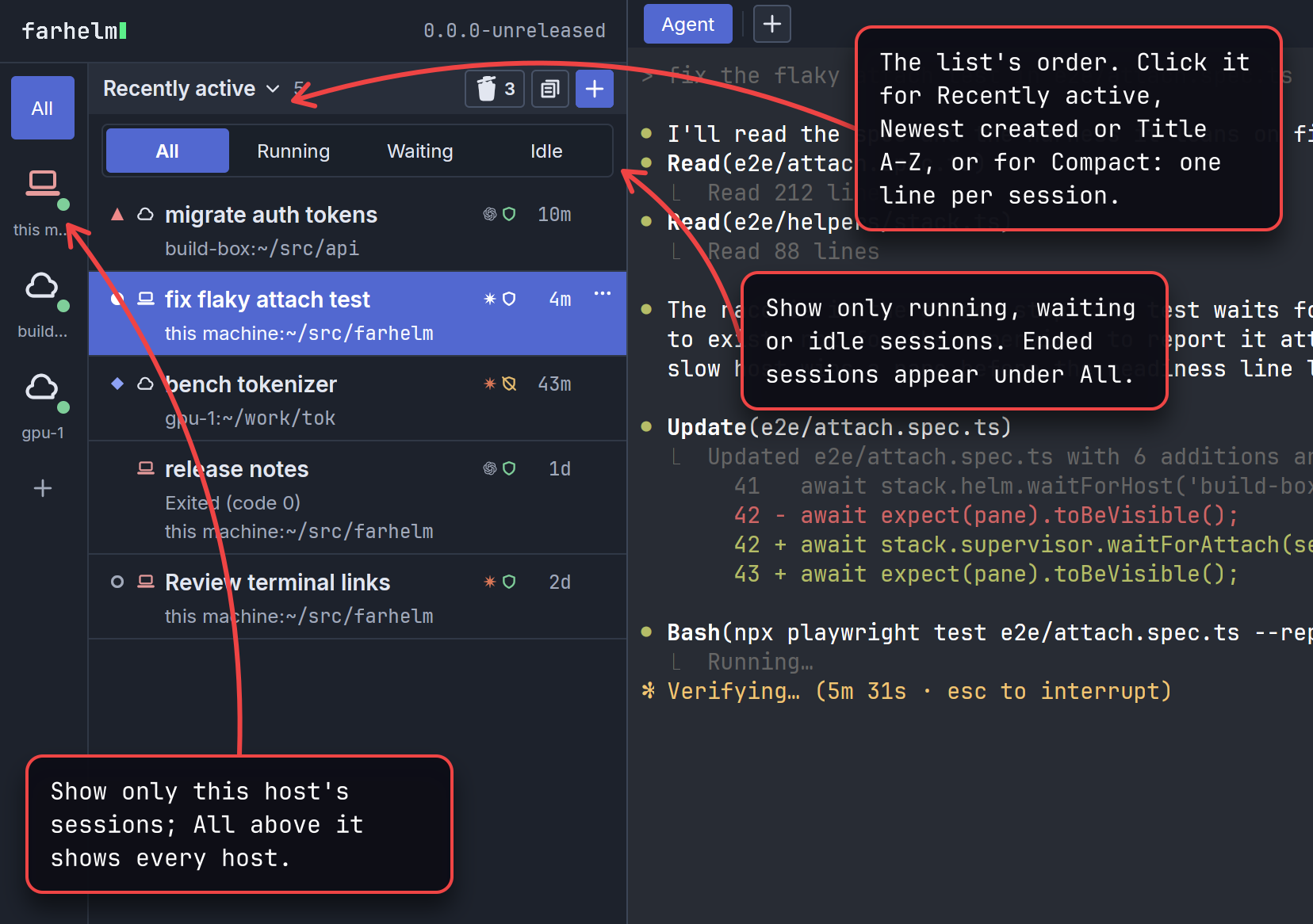
The number beside the list’s title counts every session; when a host on the
navigation rail or a status narrows the list, it says how many match, as in 3 of 12.
There is no search box in the sidebar; with many sessions, narrow the list by host or status, or sort by title.
Choosing a host shows its mark and name beside the status choices. Click its ✕ to show all hosts again. If no sessions match, the message names the host and status you are viewing; Show all hosts or Show all statuses clears that part of the filter.
Mark several sessions
Section titled “Mark several sessions”Shift-click a row to mark every session from the one you have open to that row, in the order shown. Cmd-click on a Mac, or Ctrl-click on Linux, adds or removes a single mark without opening the session. Marked rows have a side marker and tint; the session you have open keeps its blue highlight.
The bar at the top counts the marked sessions currently shown. Stop and Delete act on those sessions; see Stop or delete for what each keeps and when Stop or Delete asks you to confirm. Its ⋯ menu lets you pin or unpin, mute or unmute, move sessions to a group, or mark them read or unread together. A host or status filter leaves hidden sessions out of the count and actions. Click ✕ to clear the marks, press Escape while focus is in the list, or click a row normally to open it and clear them. Escape in the terminal still goes to the agent.
Jump with the keyboard
Section titled “Jump with the keyboard”For the full list, including the differences between the Mac and Linux apps, see Keyboard shortcuts. ? → Keyboard shortcuts shows the keys for your window.
Press Cmd+K on a Mac, or Ctrl+Shift+K on Linux, to open the quick switcher, even while typing in a terminal. Type a few letters from a session’s name, host or directory. Matches in the name come first, then matches in the host or directory. Within each, your letters at the start of a word rank above the same letters elsewhere, which rank above letters scattered through the text; among equally good matches, the most recently active session comes first. The search covers every host and status, whatever the sidebar shows.
Use ↑ and ↓ to choose, then Enter to open the session. With nothing typed, Enter opens the most recently active one. If the sidebar’s host or status choice hid it, Farhelm sets both back to All. Escape or a click outside closes the switcher and returns focus to where you were. The shortcut does nothing while another dialog is open. If you have more sessions than Farhelm can list at once, the switcher tells you it searched only the most recently active ones.
To start something new, type its name and choose New session named “…” below the matches. It opens the
session launcher with that name and your usual defaults. Type tl: to search
templates instead; tl: on its own lists them all. Choosing one opens the
launcher with the template applied. These choices leave the launcher open for you to review and press Launch.
Press Cmd+J on a Mac, or Ctrl+Shift+J on Linux, to search only templates by name. Enter starts the highlighted one; typing its exact name highlights it even if another name also contains your query. Each row shows its choices and any shortcut assigned to it. A template that needs more choices opens the launcher for you to finish.
With nothing typed, the separate Quick launch row starts your marked template directly, as Cmd+P on a Mac or Ctrl+Shift+P on Linux does. With no marked template, it opens Templates to help you choose one.
You can also give templates number shortcuts: Cmd+0–9 on a Mac, or Ctrl+Shift+0–9 on Linux. A template that can launch on its own starts directly, without opening the quick switcher; one that only changes some choices opens the session launcher instead.
To combine templates, start a launch sequence with Cmd+X on a Mac, or Ctrl+Shift+X on Linux, then their number keys and Enter. With New, Clone, Replace with or Restart with open, the marked-template chord, number keys and completed sequence apply their templates to the current draft instead; you decide when to press Launch.
Rename it, or mark it read
Section titled “Rename it, or mark it read”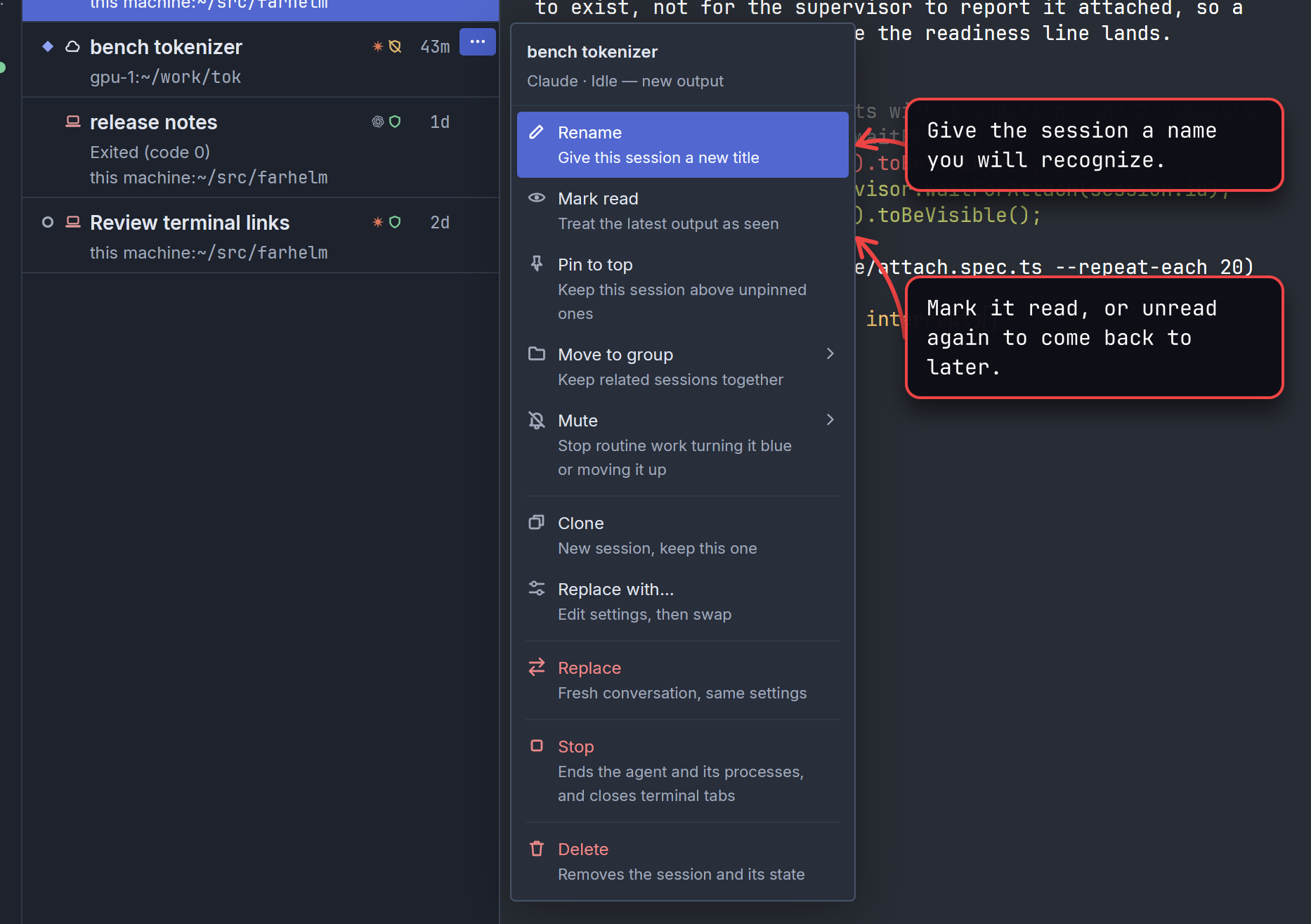
The ⋯ at the end of a row opens the session’s menu. Clicking the blue dot does the same as Mark read. The rest of
the menu pins the session, moves it to a group, mutes it, or clones, replaces, stops, or deletes it;
pinning, groups and muting are covered below, and
cloning, replacing, stopping and deleting in Stop, restart, and resume.
Cmd+L on a Mac, or Ctrl+Shift+L on Linux, opens Rename for the open session, even if a filter hides its row. Saving or cancelling returns you to its terminal.
Pin a session to the top
Section titled “Pin a session to the top”The same menu offers Pin to top / Unpin. Pinned sessions show a pin before their name and stay in the order you choose: above every group when the session is in none, or at the top of its own group when it is in one. New pins go at the bottom of those pins. Hover a pinned row and drag its grip to move it among them, or into the pins above every group or those of an expanded group; or choose Move up / Move down after Unpin. Escape or releasing anywhere else cancels a drag. Your sort choice applies to unpinned rows; host and status choices still apply to both.
Rows normally wait to move until you leave the list or keep the pointer still for five seconds with the menu closed. Pins already in place can be rearranged during that wait. A newly pinned row becomes movable when the wait ends.
Pins and their order are kept by the helm, so pins work on unreachable hosts. Replacing a session carries its pin and position over. The quick switcher keeps its usual order.
Group sessions
Section titled “Group sessions”To keep related sessions together, choose Move to group in a session’s menu, or in the ⋯ menu of the bar above marked sessions. New group… asks for a name and puts the sessions in a new group at the end of your groups; the other choices move them into an existing group, or out of one with Remove from group. For a pinned session in a group that choice is called Global pins: the session leaves the group and stays pinned above every group. A session is in at most one group, and a group can hold sessions from several hosts.
The list shows pinned sessions that are in no group first, then your groups in the order you choose, then everything
else. A group’s header shows its name and how many sessions it holds, or 2 of 5 when a host or status choice hides
some. Click the header’s toggle to collapse or expand the group. A collapsed group shows the dot of its most urgent
session, waiting first, then finished since you last looked, then running; hover the dot to see which session it is.
Drag a header by its grip, or use Move up and Move down in its ⋯ menu, to reorder groups. The same menu has
Rename and Ungroup, which removes the group but keeps its sessions, and their pins, in the list. A group goes
away when its last session leaves it or is deleted.
The helm keeps your groups, their order and which ones are collapsed. Restart keeps a session in its group, Replace and Replace with carry the new session into it, and Delete takes it out. The quick switcher ignores groups.
Mute a session
Section titled “Mute a session”To stop a session asking for your attention while its agent does routine work, choose Mute in its menu, or in the ⋯ menu above marked sessions, then For 1 hour, Until tomorrow morning (6:00 your time) or Until I unmute. A muted session reads as seen, and Farhelm plays no sound when its agent finishes a turn. A slashed bell takes the place of its status dot; hover it to see the real status and when the mute ends, or click it to unmute.
Muting does not hide a session that needs you. When a muted session waits for you on a host Farhelm can reach, it keeps its red waiting dot, with a small bell after its title, and the waiting and approval sounds and ntfy alerts work as usual.
A muted session’s menu has Unmute in place of Mute, and no Mark read or Mark unread. When a mute ends, early or on time, the session counts as seen up to that moment. Restart keeps a mute, Replace and Replace with carry it over, and Delete removes it.
When a row shows a bell
Section titled “When a row shows a bell”The slashed bell in place of a status dot, and the small bell after a waiting session’s title, mean the session is muted. The bell this section is about is different: a bell appears on a row, just left of its age, when Farhelm has noticed something about that session that you can act on. Most are about following the agent’s conversation, which is what lets Restart pick that conversation up again later. For example, the agent has been working for a while and never told Farhelm which conversation it is in, so Restart cannot pick it up. Each notification says what happened and what you can do about it, such as starting the session over with Replace with, or, when nothing can be done, what you lose. The other kind tells you that the session’s agent ran in an old terminal, which Farhelm ended when it updated, and how to start it again (New terminals explains). Releases before the one that ended old terminals warned instead that something in the session still ran in an old terminal; those warnings now show as resolved. A link to a Farhelm docs page in a notification opens that page when you click it.
A red, filled bell means at least one notification is new. Click it to list them, newest first, with the ones you have not seen before marked New. Clicking the bell does not open the session. Closing the list, by clicking elsewhere, pressing Escape, or clicking the bell again, marks everything in it read, and the bell turns grey. Clear all removes them, and the bell goes away until something new happens. The helm keeps which notifications you have read or cleared, and a session keeps only its 10 most recent ones.
If the agent later tells Farhelm which conversation it is in, or its missing conversation record comes back, and Restart can resume again, the warning stays in the list but is greyed and marked Resolved. It counts as read even if you have never opened it. If the same problem returns before that agent is relaunched, the warning moves back to the top as New and makes the bell red again, even if you had cleared it.
Work in a session covers what you can do once a session’s terminal is open.