

Stop, restart, and resume
A session outlives its agent. Stopping the agent, or a reboot ending it, leaves the session in the list, ready to start again; after a stop its terminal stays readable too. Only deleting a session removes it.
The header’s actions
Section titled “The header’s actions”The action buttons share the row above the terminal with its tabs. The session’s name, host, and other details are in the bar below the terminal. Restart and Replace each have an arrow beside them that opens a menu with the plain action and Restart with… or Replace with….
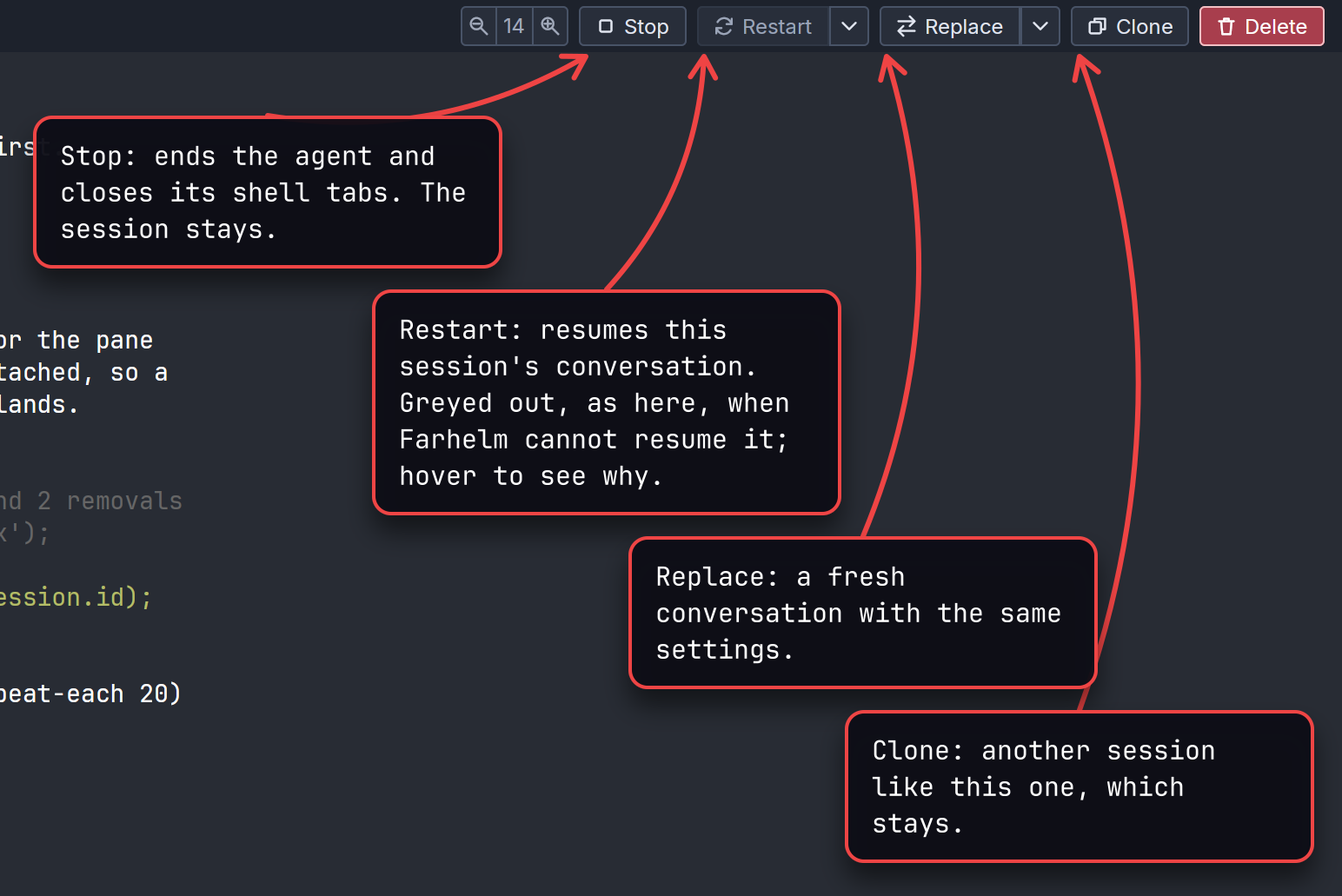
Restart always continues the session’s own conversation; there is no restart that starts a new one. When Farhelm has no conversation it can resume, because the agent cannot report one or none was captured, Restart is greyed out and hovering over it says why. Right after a launch that is usually just a wait: Farhelm captures a Codex or Muse conversation once you submit your first prompt, a Pi or OMP conversation after the agent’s first reply, a Claude conversation a few seconds after it starts, a Goose conversation as soon as it starts, and a Grok conversation after your first prompt, once its hooks are installed; Restart can take a couple of seconds more to become available. If it never comes, replace is how you start the session over. Supported agents says which agents Farhelm can resume, and a command you run yourself needs an agent and a resume command declared for it; see Custom commands. These rules also apply inside container sessions.
Restart with…, in the menu beside Restart, resumes the conversation the same way, with different settings. It opens the session launcher filled in with this session’s choices, where you can change the model, effort, permission mode or wrapper prefix; the agent, host, directory, session name and first message stay as they are; templates work here as long as they leave those as they are. For an agent Farhelm can resume, you can also name the conversation it should enter. If Farhelm never learned its id, Restart with remains available and requires the id or, for Pi and OMP, the session file. Cursor and OpenCode cannot use Restart with, and neither can a Muse session started before Farhelm could resume Muse; Muse says how to recreate it. Enter on one of its choices picks it and restarts with the result (in the model field, Enter only picks the model); when the button says Stop and restart, because the agent is working, Enter also confirms stopping it first.
For Codex, Muse and Pi in a managed checkout, Replace with and Clone use the current trust setting, as does Restart with where available. Plain Restart and Replace keep the trust carried by the saved launch.
The entered conversation is a choice for this start only, as in the session launcher.
Farhelm keeps the previous conversation until the agent reports the new one. Codex and Muse report at your first prompt, so
Restart before then still opens the previous conversation. Goose cannot report after this kind of start; naming a new
conversation forgets the old one and leaves later Restart unavailable. The same happens for an agent whose Farhelm
hooks are turned off with FARHELM_AGENT_HOOKS, except Grok, whose hooks are the ones you install.
Replace starts the agent again from a fresh conversation, with the same agent, settings, and directory. It makes a new session in this one’s place, so the old conversation, shell tabs, and terminal history all go, and it asks you to confirm first; press Enter to go ahead. Replace with opens the session launcher filled in with this session’s choices; change anything but the host, and the new session takes this one’s place. Clone opens the launcher the same way but leaves this session alone, so you end up with two. Clone of a session in its own sandbox or container opens on a new one from the same recipe, on your Tensorlake account or the same container host, starting in its home directory, or in a fresh checkout of the same repository there when the source was in a managed checkout, while Replace with keeps the existing one. None of these sends an initial prompt again.
While the agent is working (its status is running), Restart asks you to confirm first, since restarting stops it. An agent that is idle or waiting for you is stopped and restarted without asking, and a session whose agent has already ended restarts straight away. Restart never asks the YOLO question, even for a YOLO session, since it relaunches a choice you already made; Restart with asks it when the new settings are YOLO and the host asks before YOLO launches; Confirm a YOLO launch covers its answers.
Stop or delete
Section titled “Stop or delete”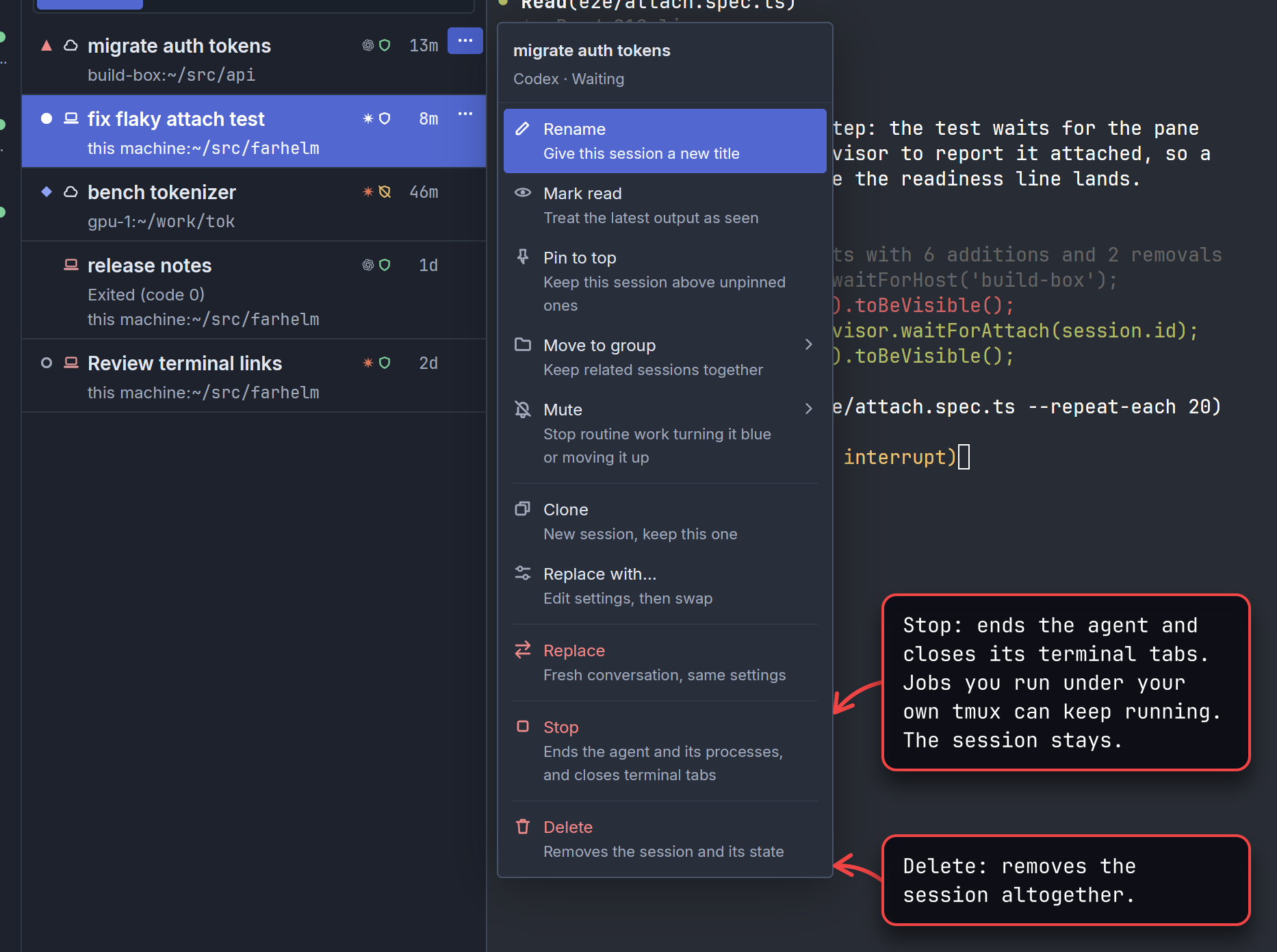
Both are in a session’s menu in the session list and at the right of the row above the terminal, beside its tabs. Delete asks you to confirm, with one exception: from the session list, a session that has already ended and has no shell tabs open is deleted at once. When a confirmation opens, Enter confirms it; Cancel backs out. The YOLO question still starts on Cancel.
Container sessions and sandbox sessions always confirm Delete. Unless another session still uses it, the session’s checkout is deleted permanently, bypassing the checkout trash, and deleting the last session there also destroys the whole environment and all its files. When Farhelm cannot reach the Farhelm inside the environment, Delete offers to destroy the whole environment instead, with a warning. Deleting several marked sessions works the same way, one session at a time. Their Suspend, Resume and Stop and suspend controls act on that environment. The earlier experimental containerized sessions support Delete only.
With shell tabs open, Stop asks you to confirm closing them. A tab Farhelm cannot close is named in a notice; the other tabs still close. Jobs you run under your own tmux inside a session can keep running afterwards, as they would outside Farhelm; the tmux server itself ends. Restart leaves shell tabs running, as does an agent exiting on its own. You can open another tab after Stop.
To act on several sessions, mark them in the session list and use Stop or Delete in the bar above it. Only the marked sessions currently shown are included. If any needs a Stop or Delete confirmation, one question lists every included session with its status, host and what will happen; Skip session confirmations applies here too. Each host works through its sessions in turn, while other hosts can keep going. A failure stays on that session’s row, and the marks clear when the run finishes.
Cmd+W on a Mac, or Ctrl+Shift+Backspace on Linux, deletes the open session the same way as its Delete button, including the confirmation setting below. Session shortcuts act only on the session you have open, even when others are marked. Escape cancels the Stop, Restart, Replace or Delete question under those buttons and returns you to the terminal.
Keyboard shortcuts lists the other session actions you can reach from the keyboard, including Rename and the quick switcher.
To stop, delete, replace, restart and close shell tabs on the first click, turn on Skip session confirmations in the Sessions section of Settings, behind the gear at the foot of the navigation rail, the column of icons down the left edge of the sidebar. It starts off, your helm keeps it, and it takes effect at once. Delete of a session in a container or sandbox, YOLO, host and trash questions keep their own rules, and Restart with still opens the launcher.
On an ordinary host, a managed checkout stays while another
session uses it; deleting its last session moves the directory, including uncommitted work, into
.farhelm-trash in the directory managed checkouts go into. Existing trash moves into this hidden directory
automatically when Farhelm next uses it. This archive is the checkout’s trash: the
move preserves its contents and frees no disk space. The trash button at the top of the session
list shows where to recover that work and lets you delete it
permanently, one checkout at a time or all at once. If the move fails, Delete still removes the session and tells you
which directory was left behind; Farhelm no longer manages it.
After a reboot
Section titled “After a reboot”When a host reboots, every session still running on it ends and shows as interrupted, and its terminal contents are gone. Farhelm does not start them again by itself; opening one shows a card in place of its terminal, with Restart when Farhelm can resume its conversation, and Replace, which starts the session over. What survives what has what else a reboot, or restarting Farhelm itself, does and does not keep.
Manage hosts covers the hosts your sessions run on.