

Work in a session
A session’s terminal is the agent’s own terminal: you type to the agent exactly as you would if you had started it in a terminal yourself, and everything it prints shows up here. Farhelm does not sit between you and the agent’s prompts.
Session details and actions
Section titled “Session details and actions”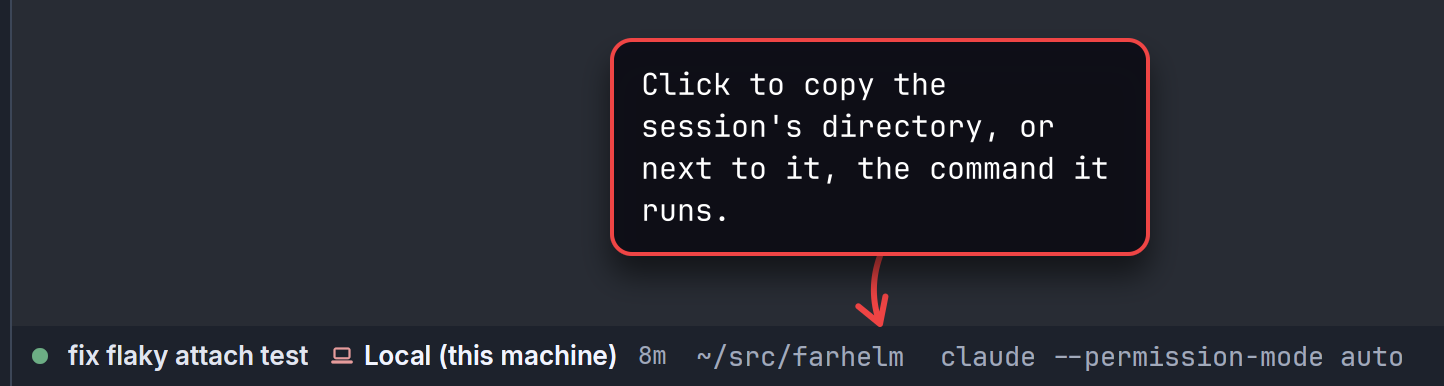
The slim bar under the terminal shows the session’s status, name and host, followed by its age, directory, and command.
The host has the same icon and color as in the session list, so you can see where you are
working. A session in a managed checkout also has a branch
mark after its age, naming its repository; hover it to see where the checkout is and what happens when you delete the
last session using it.
The Sessions section in Settings can also color the terminal’s frame to
match its host.
The directory shows your home directory as ~.
The terminal tabs and action buttons share the row above the terminal. The buttons at its right end stop, restart, replace, clone, and delete the session; the arrows beside Restart and Replace open menus that also offer Restart with… and Replace with…. Stop, restart, and resume covers them. Cmd+W on a Mac, or Ctrl+Shift+Backspace on Linux, does the same as the open session’s Delete button. In the Mac app, Cmd+W does not close the window; use its close button or Cmd+Q.
Open a shell beside the agent
Section titled “Open a shell beside the agent”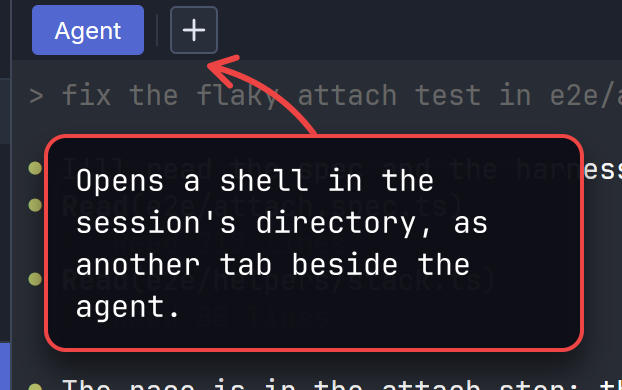
Each shell tab is named Terminal 1, Terminal 2, and so on, and runs on the same host as the agent, in the session’s directory. In a container session, it opens inside the session’s container. It belongs to the session: it keeps running when you switch to another session or restart the agent. Stopping or deleting the session closes it. Closing a tab yourself asks you to confirm first, since it ends whatever is running in it; press Enter to confirm, or Cancel to keep it open. You can skip that question with Skip session confirmations under Sessions in settings.
The magnifier − and + buttons at the top right change the terminal’s text size, with the current size in points between them. Cmd+Shift+minus and Cmd+Shift+plus do the same on macOS; on Linux use Ctrl+Shift. The keyboard shortcuts overview lists these keys alongside session and launch shortcuts.
Copy, paste, and links
Section titled “Copy, paste, and links”Selecting text copies it. Some agents take over the mouse for their own interface, and then a plain drag does not select anything; hold Option while you drag (Shift on Linux) to select anyway. When a drag copies nothing, Farhelm shows a hint a few rows above where you let go, or below when there is no room above. A quick Option-click on a Mac (Alt-click on Linux) moves the program’s cursor to where you clicked, in programs such as shells that let you edit the line you are typing. Paste with Cmd+V on a Mac, or Ctrl+Shift+V or Shift+Insert on Linux; Keyboard shortcuts has the terminal’s other keys. Farhelm removes escape characters from pasted text so a paste cannot end early and type the rest as keystrokes; other control characters, such as Ctrl-C, still reach the program.
To give the agent a screenshot or a file, paste it into the terminal. Farhelm uploads it to the session’s host and types its path at the prompt, so it works the same on a remote host as on your Mac. Dropping a file onto the terminal does the same. On Linux, a file you copy in a file manager pastes as text, usually its path on your machine, instead of being uploaded; pasted screenshots and other images still upload.
Clicking a web link in the terminal opens it once in your browser. Farhelm keeps that click from reaching the program, so an agent that opens links itself does not open a second tab. If a program needs those clicks, change the link choices under Terminal in settings. File downloads keep working the same way under every choice.
Some programs print a link under text of their own; hovering over one of those shows where it really goes, and Farhelm warns you when the text is itself a web address that names a different place.
To bring a file back from the session’s host, hover over its path in the terminal.
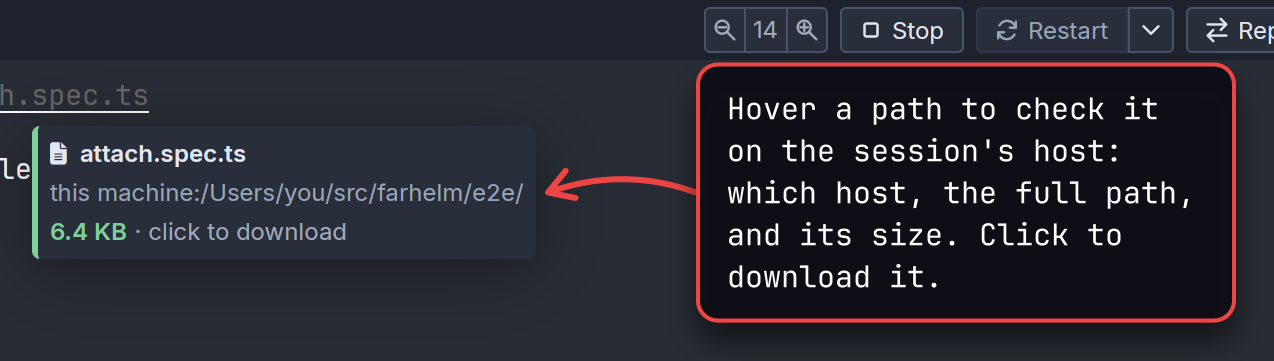
A click saves it into Downloads, chooses a new name if needed, and tells you where it went. A failed transfer leaves no partial file.
Cmd-click on your Mac (Ctrl-click on Linux) also opens the saved copy in its default app. By default, Markdown, text and JSON files and common image types (PNG, JPEG, GIF, WebP, BMP, AVIF) open; other types are saved without opening. You can change the list under Terminal in the settings dialog. Save an empty list if you want Cmd-click to download without opening. The hover shows when opening is available, and the message tells you if the file was saved but could not be opened. See the security model before opening agent-provided files.
Paths can start with / or ~/, contain a slash, or end in a file extension, such as report.pdf. A relative path uses
the directory the session started in; it can miss after a shell changes directory. A path that a program breaks onto
the next line near the terminal’s right edge works from either half. Programs can also print file links
under their own text. Directories and files over 100 MB cannot be downloaded. Check the host and path before clicking:
an agent’s path can name any file its account can read on that host.
The terminal keeps at least the last 10,000 lines for scrolling back with the wheel, the scrollbar, or Shift+PageUp and Shift+PageDown; typing returns it to the live screen. How much of that history survives a restart is in What survives what. A few things still work differently from other terminals, such as typing with an input method; New terminals lists them.
Open a remote localhost link
Section titled “Open a remote localhost link”In the Mac app, Cmd-click a localhost link in a remote session to open the service running on that host. Farhelm connects a port on your Mac to the service and opens it in your browser. The hover names the host and port; a plain click still opens the address on your Mac. The tunnel action is available in the Mac app for remote sessions and container sessions. A container session reaches the container’s loopback, even when its container host is the helm’s own machine.
The first time, Farhelm asks you to accept a security warning. A page opened this way runs as a local page in your
browser: it can read cookies from other services on 127.0.0.1, since ports do not separate cookies, and it bypasses
your browser’s private-network checks. Any program on your Mac can connect to the tunnel.
You can turn tunnels off under Terminal in settings, which closes the ones already open.
Open tunnels appear as a pill beside the terminal tabs, showing the port on your Mac and the host’s port, or how many
tunnels are open. Click it to list them and close one, or Close all; this works even while the host is disconnected. The port on your Mac is one your Mac picks, never the host’s port number, so an app that puts its own
localhost address and port into links or redirects does not reach the tunnel that way; open it through the tunnel’s
link instead. Opening another link to the same service reuses its tunnel. Deleting the session or quitting Farhelm
closes it; stopping or restarting the agent leaves it open. A disconnected host makes new connections fail until it
returns.
This works for localhost names and loopback addresses, including a development server that listens only on IPv6. It does not forward browser-login callbacks automatically. When an agent asks to open a link, its approval card offers the same tunnel action.
When the connection drops
Section titled “When the connection drops”If Farhelm loses its connection to the session, a card over the dimmed last screen explains what it is waiting for, with details below. The view reattaches by itself when the connection is back. The Reconnect now button tries again straight away when the connection from your window dropped; when the host itself is unavailable, the card instead shows any steps needed to reach it again. What keeps running during an outage is covered in What survives what.
A terminal that stops and will not come back by itself, because your window fell too far behind its output or the connection was refused, keeps its last screen under a red line that says why, with a Reconnect button that attaches it again.
Stop, restart, and resume covers ending a session and starting it again.